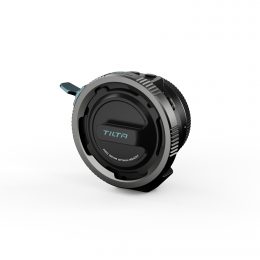
A complete guide to connecting, pairing, and updating firmware for the Auto Focus Adapter, Nano II and Nucleus MII motors.
Gather Latest Firmware Versions
Updating the Autofocus Adapter Firmware
- Locate the USB-C port labeled “PD IN” on the adapter and connect the adapter to your computer using a USB-C cable
- Press the Menu button (left side of the adapter) and use the selector to navigate to Import Data.
- The adapter will appear as a removable drive on your computer.
- Drag and drop the firmware update file into the drive and safely disconnect from your computer.
- Open the Menu again and navigate to Update.
- Select the firmware file and press the right-side button to begin the update.
- The adapter will automatically restart when complete.
Note: This same process can be used to import or export lens files.
Updating Nano II Motor Firmware (via Adapter)
- Locate the USB-C port labeled “PD IN” on the adapter and connect the adapter to your computer using a USB-C cable
- Press the Menu button (left side of the adapter) and use the selector to navigate to Import Data.
- The adapter will appear as a removable drive on your computer.
- Drag and drop both firmware update files into the drive and safely disconnect from your computer.
- Open the Menu again and navigate to Update. Confirm both firmware files are listed.
- Use a standard USB-C cable (not the splitter control cable) to connect the adapter to Port 2 of the Nano II motor and hold the pairing button on the motor while connecting the cable.
- Ensure the LED indicator is flashing green (pairing mode).
- Select the Nano II M file on the adapter and press Update.
- Disconnect the USB-C cable and hold the pairing button again before reconnecting to confirm the motor is in update mode.
- Confirm the LED is flashing green and select the Nano II S file, then press Update.
- Once both updates are installed, return to the menu. The Nano II motor is now ready for use.
Updating Nucleus MII Motor Firmware
- Locate the USB-C port labeled “PD IN” on the adapter and connect the adapter to your computer using a USB-C cable
- Press the Menu button (left side of the adapter) and use the selector to navigate to Import Data.
- The adapter will appear as a removable drive on your computer.
- Drag and drop the firmware update file into the drive and safely disconnect from your computer.
- Open the Menu again and navigate to Update. Confirm the firmware files is listed.
- Use a USB-C to 7 Pin cable to connect the adapter to the motor while holding both the Up and Down arrow buttons on the motor to enter Update Mode.
- On the adapter, select the firmware file and press Update.
- After updating, restart the motor and enter the motor’s menu.
- Navigate to the Information page to confirm the firmware version.

 (No Ratings Yet)
 Loading...